How to Edit Text in Images Without Losing Original Fonts or Quality
A practical guide to editing text inside flattened PNG, JPEG, and WebP images while automatically preserving the original typeface, lighting, and background texture.
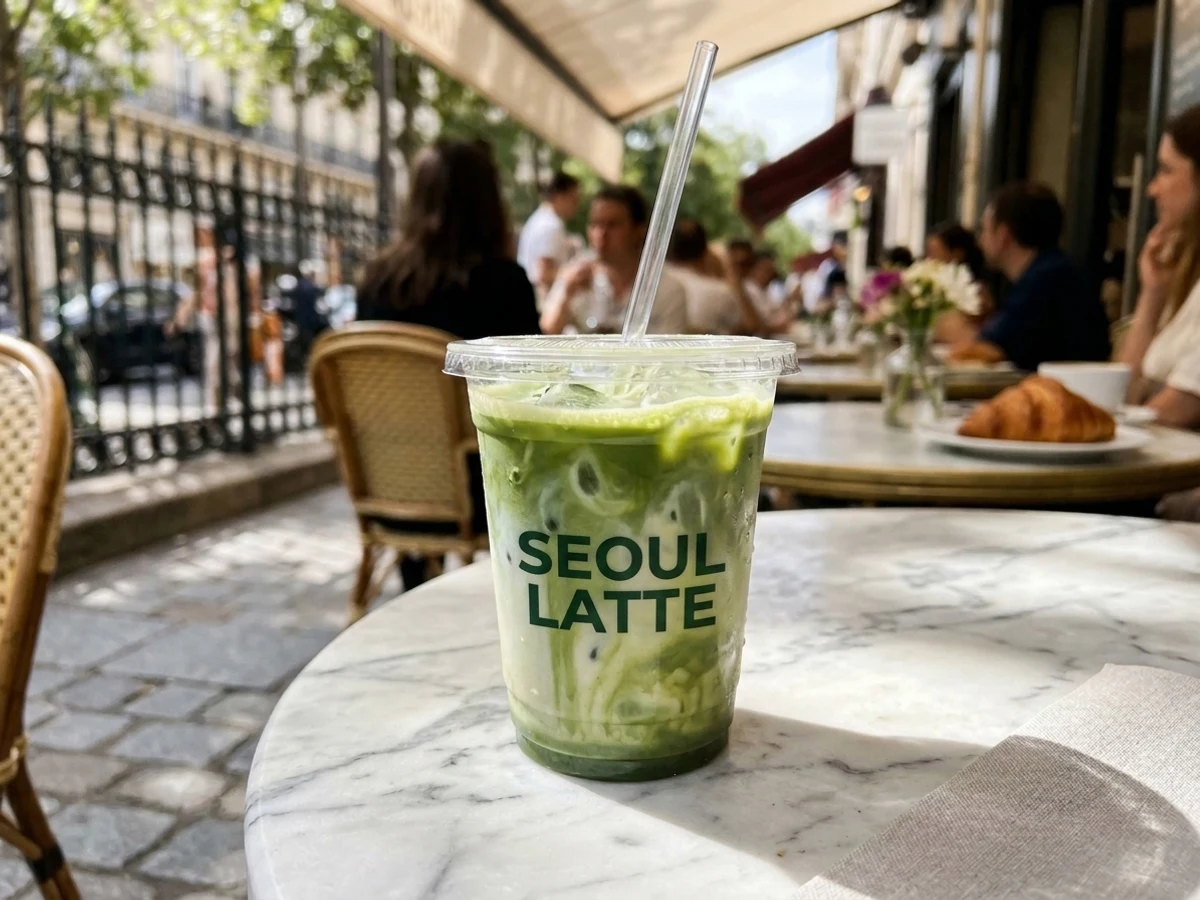
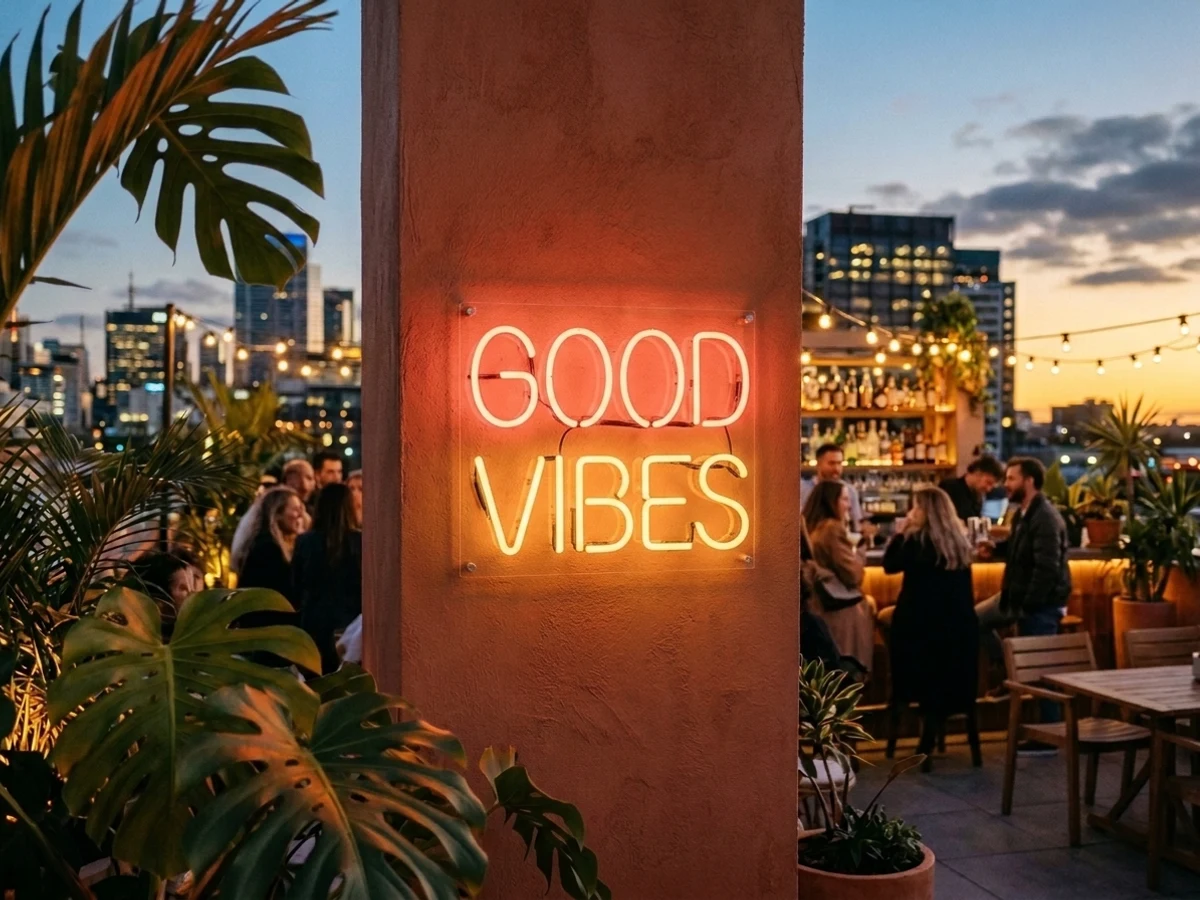
Upload your flattened image to SwapTxt, let built-in OCR detect every line of text, click the box you want to change, type your new wording, and export Result B (original-pixel blend) or Result C (4K master) — zero font hunting or Photoshop layers required.
Why Flattened Image Text Is Normally Hard to Edit
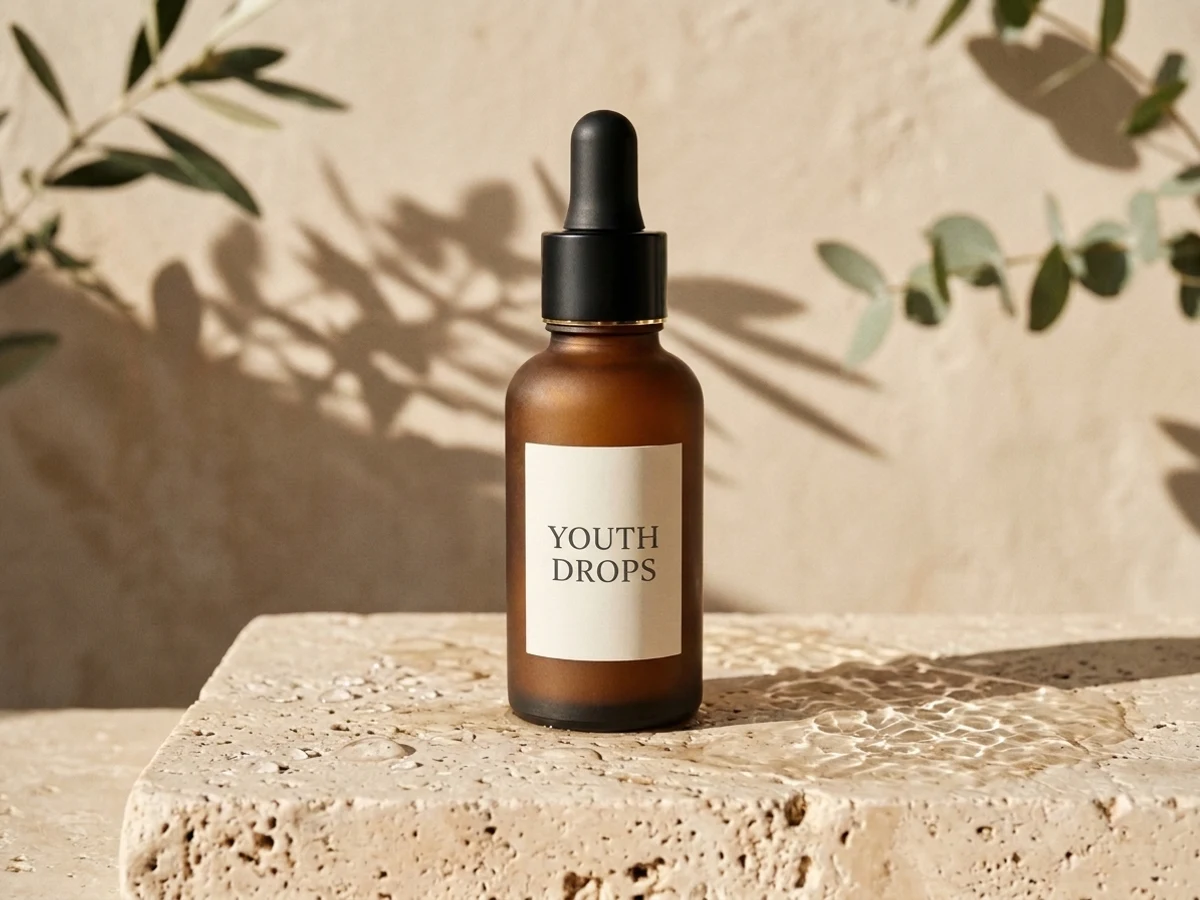
Once a graphic is exported to JPG or PNG, its typography is merged into pixels. Traditional editors force you to mask out the old words, reconstruct the background with clone-stamping, hunt down the exact font file, and manually match perspective and color.
The 3-Step AI Typography Workflow
With SwapTxt, OCR locates every line of text with normalized bounding boxes. You click a box, enter your replacement wording, and the engine erases the old glyphs, rebuilds the underlying surface, and synthesizes new letterforms matched to the scene.
Choosing Between Result A, B, and 4K Exports
Every edit produces three options: Result A is the full AI render, Result B composites only your edited text boxes back onto the pixel-exact original photo, and Result C provides an upscaled 4K master for print or high-DPI displays.
Edit text in your image right now
Test OCR detection and font-matched replacement directly in the SwapTxt studio.
Frequently Asked Questions
Can I edit multiple lines of text in one image?
Yes. Queue up to 30 text boxes on the same image and process them in a single batch.
Will untouched words on my image move or disappear?
No. SwapTxt locks untouched OCR lines in place so surrounding text stays completely unchanged.