
How to Replace Images and Text Assets in Photoshop Smart Objects
Use Photoshop Smart Objects to swap mockup images cleanly, and pair them with SwapTxt when you need fast localized text variants.
Right-click a Smart Object layer in Photoshop and choose 'Replace Contents' to swap an image while keeping perspective warps. If you only need to swap the text inside a finished mockup, SwapTxt skips the PSD step completely.
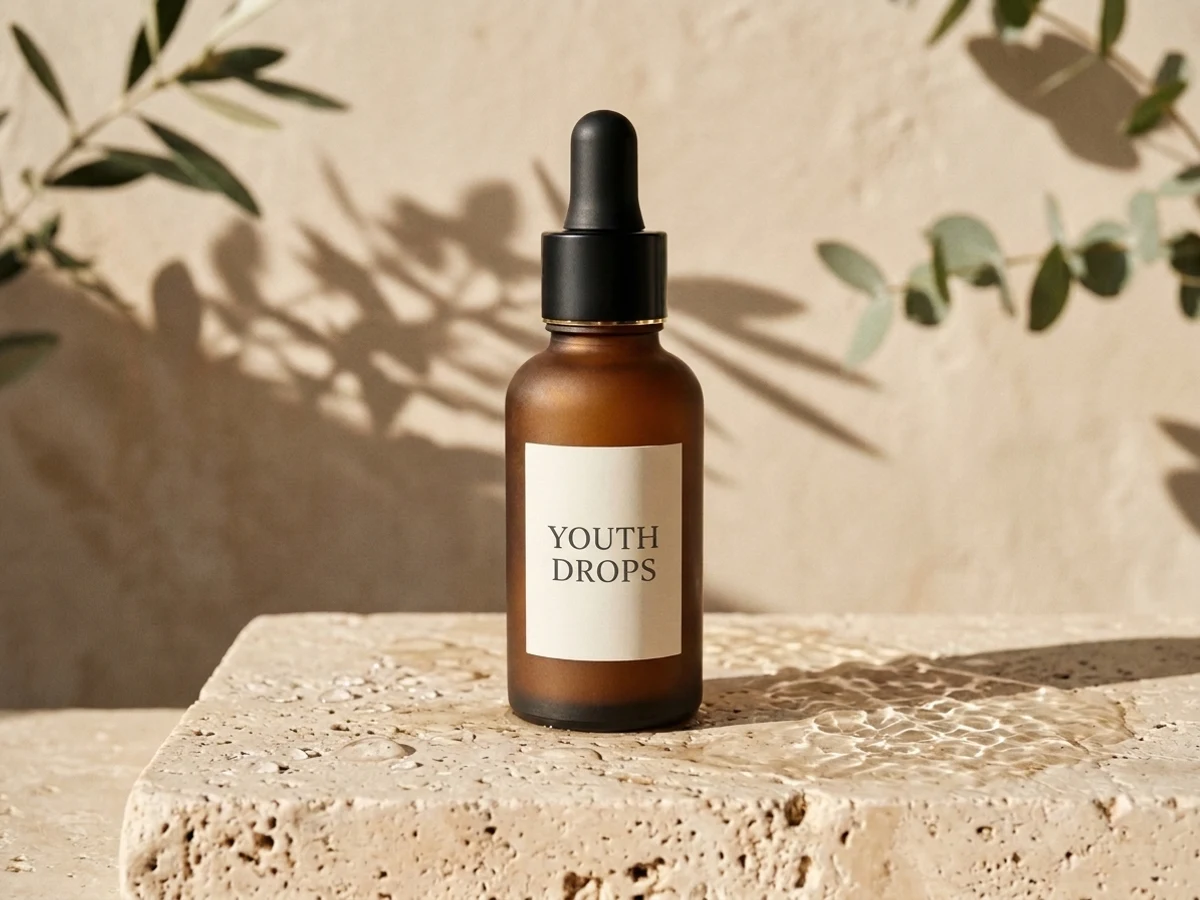
Swapping Smart Object Contents in Photoshop
Right-click the Smart Object layer → Replace Contents → pick your new file. Photoshop preserves all existing transforms and layer styles.
Fast Text-Only Updates Without Opening PSDs
When marketing teams only need to swap headlines or dates on an exported mockup, SwapTxt updates the pixels directly in the browser.
Swap text inside mockups directly
Update finished packaging and poster mockups in seconds.
Frequently Asked Questions
Can I save a mockup in SwapTxt as a reusable template?
Yes. Save any completed edit as a template in History to reuse its bounding boxes.